See where your browsing time actually goes.
Say what a session is for, press Record, and browse. When you stop, ThinkTrail shows how much of your time served that goal, what pulled you away, and study notes from what you read.
Free. For desktop Chrome and other Chromium browsers.
Three steps, then it stays out of your way
ThinkTrail only records when you ask it to, and only in Chrome.
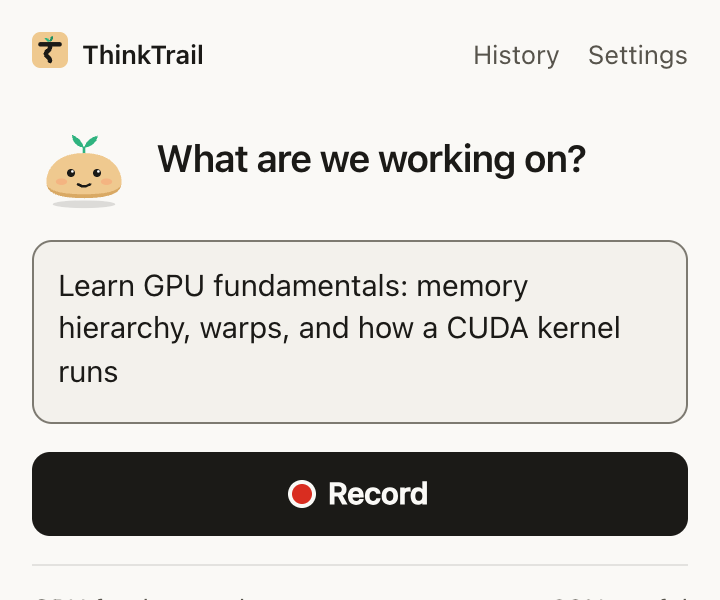
Click the toolbar icon or press ⌘⇧K (Ctrl+Shift+K on Windows) and write your goal, like "Learn how GPUs schedule warps". Or leave it blank to just track your time.
It notes which pages you visit and for how long. Step away and it pauses by itself; come back and it carries on.
It's analyzed as soon as you stop: your useful time, what you did, where you drifted, and notes from what you read.
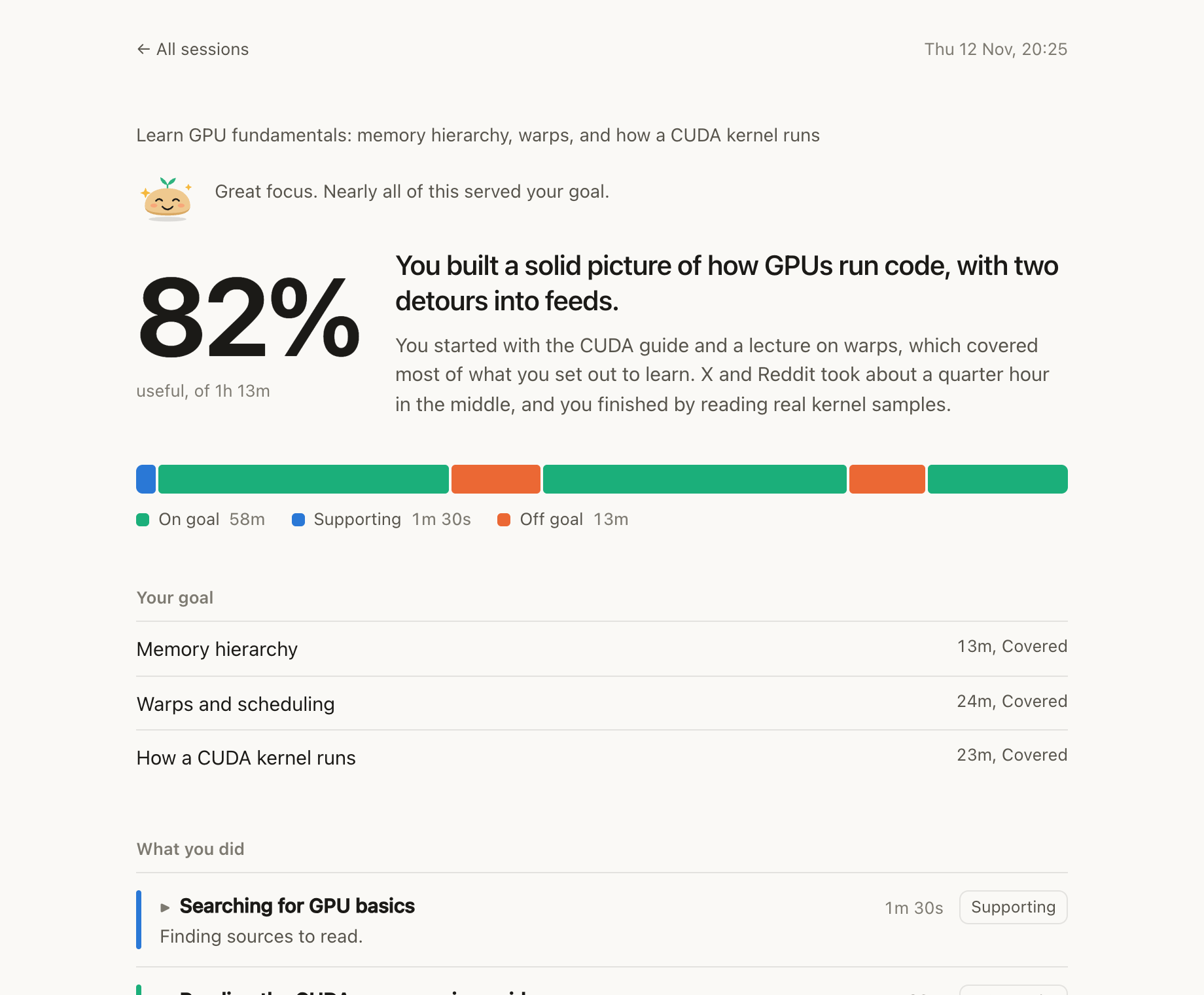
One number: how much of your time served the goal
Every activity gets a label, and the timeline shows the whole session at a glance. If a label is wrong, change it, and the numbers update.
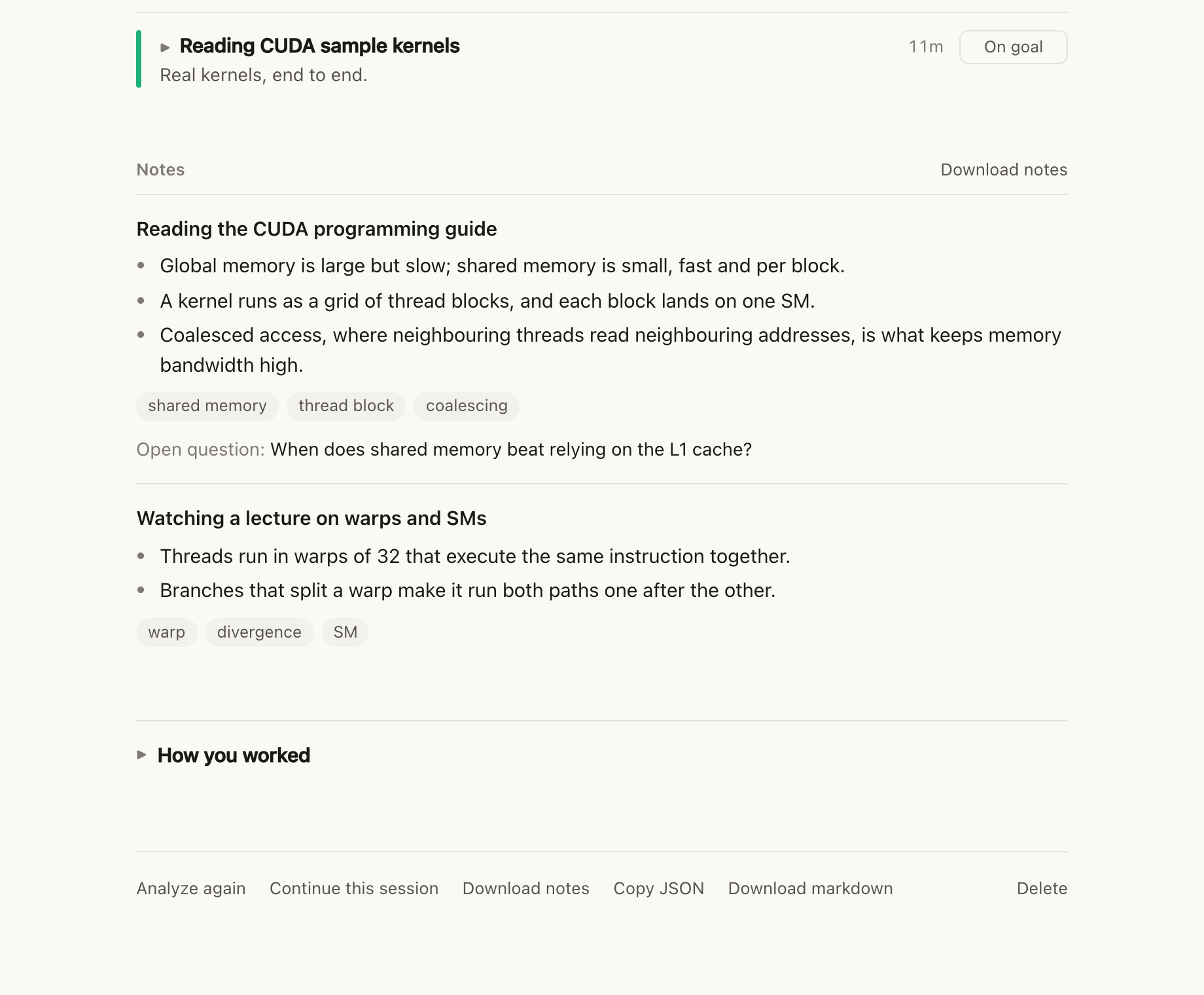
Notes from what you actually read
Key takeaways, terms and open questions, written from the pages that served your goal. Download them as Markdown for Obsidian, Notion or anywhere else.
Want to remember it? Press Make flashcards, and the AI picks the few things worth reviewing, as quick questions brought back just before you'd forget them.
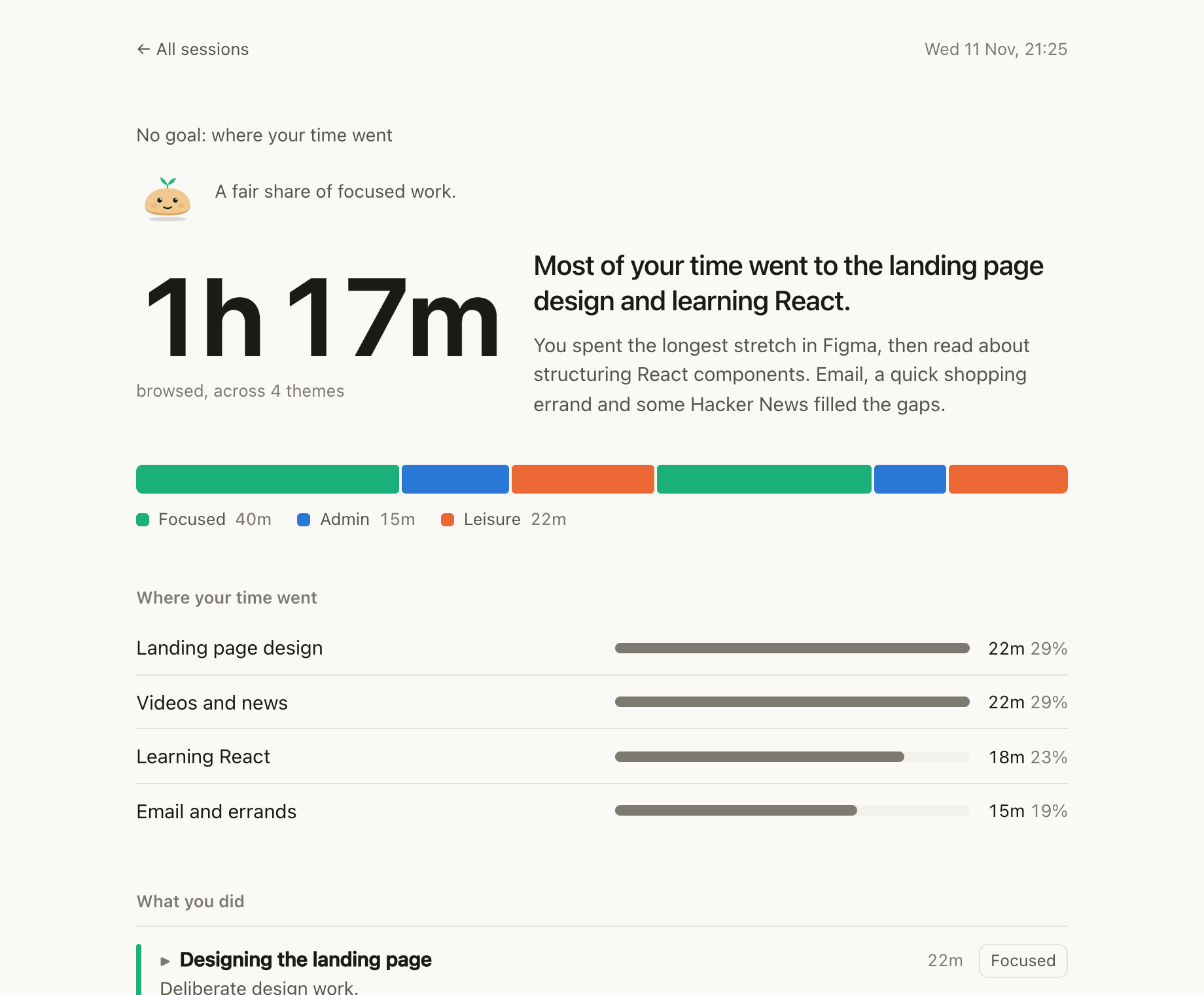
No goal? See where the time went
Record without a goal and the report groups your time into themes, and into focused work, admin and leisure. No judgment, just the picture.
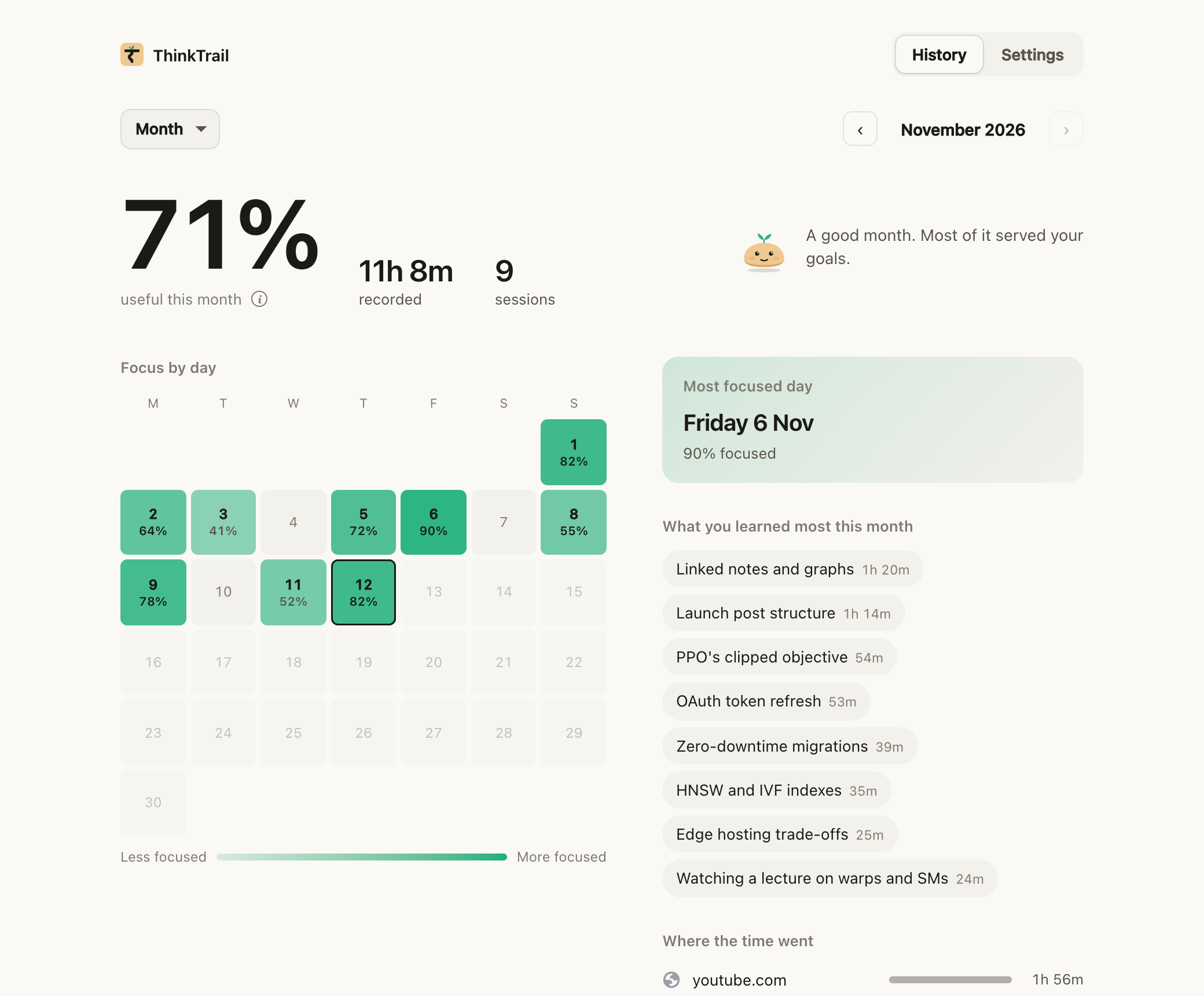
Your month, in one place
History colors each day by how focused it was, and shows what you learned most, where the time went, and the sites you drift to.
Forgot to record? Sync a day from your Chrome history, and it fills in around the sessions you did record.
Screenshots use sample data.
Install it
ThinkTrail is on the Chrome Web Store.
- Open its Chrome Web Store page
Free, with no account to make.
- Click Add to Chrome
Works in Chrome and other desktop Chromium browsers, such as Edge, Brave and Arc.
- Pin it
Click the puzzle-piece icon in the toolbar and pin ThinkTrail, so it's one click away.
- Press Record
The first time, Chrome asks to let ThinkTrail see the sites you visit. It asks then, not at install, and ThinkTrail reads nothing until you press Record.
Using it
Starting a session
Press ⌘⇧K or click the icon, write what the session is for, and press Enter. A specific goal gets a better report: "Compare PPO and DQN for my project" beats "research".
Pause and Stop are in the same popup. Time away from Chrome counts as away. After 15 minutes away the session pauses by itself, and after 30 more it ends. You can continue it from the report.
Analyzing a session
Each session is analyzed when it ends, with free credits unless you choose otherwise. Change the method, or switch to pressing Analyze yourself, in Settings.
Free credits
ThinkTrail's own server analyzes it and keeps none of it. 10 sessions a day, free.
On this computer
Uses Gemini Nano, the AI built into Chrome. Nothing leaves your computer, and there's no limit. Chrome downloads the model once, the first time.
Needs Chrome 138 or later, about 22 GB of free disk space, and 16 GB of RAM or a GPU with more than 4 GB of memory.
Your own AI key
Paste a key from Anthropic (Claude), OpenAI or Google (Gemini). Sessions go straight from your browser to that provider, and you pay them for what you use.
Any report can also be copied into a chat AI you already use, such as ChatGPT, Claude or Gemini.
Private by design
Your browsing history is yours. ThinkTrail is built so it stays that way.
- Sessions are stored only in your browser. There's no ThinkTrail account.
- It records only while you're recording, never in the background.
- It counts clicks, keys and scrolling, but never stores what you type, where your cursor is, or anything on password pages.
- Free credits send a session to ThinkTrail's server for analysis, which keeps none of it, only a count of sessions used. Analysis on this computer sends nothing anywhere.
- No site access is asked for at install. Chrome asks the first time you press Record.
- Add sites to the excluded list in Settings, and ThinkTrail records only the time spent on them.
ThinkTrail Pro: free for now
These are in ThinkTrail today, free for everyone while Pro is on the way:
- Notes-app sync. Every session and its notes go to Obsidian, Logseq, a Markdown folder or Notion by themselves.
- Flashcards. When you want them, the AI picks what's worth remembering from a goal session, and the Learn tab brings it back for review.
- Nudges. Your goal shows when you open a distracting site, and Trail pops up if you stay too long.
Coming next:
- Claude Code. Hand sessions to Claude Code, which writes the analysis and notes.
- More AI analysis. Many more analyzed sessions a day than the free 10.
Leave your email to hear when they arrive.
We'll email you when Pro arrives. Nothing else, and every email has a link to leave the list. How we handle your email.
Questions
Where do I get it?
On the Chrome Web Store. It's free.
Is it free?
Yes. Free credits cover 10 analyzed sessions a day, and analysis on your own computer or with your own AI key has no limit.
What happens when my free credits run out?
Sessions keep recording, and wait for analysis until the credits reset the next day (at midnight UTC). Or switch to your own computer or your own AI key in Settings.
Why does it ask for access to the sites I visit?
So it can tell which page you're on while you record. Chrome asks the first time you press Record, not at install. ThinkTrail records only while you're recording, and never reads the sites you exclude.
Does it work on my phone?
No. Chrome extensions only run on desktop Chrome and other desktop Chromium browsers.
Does it see other apps?
No, only Chrome. Time in other apps counts as away.
Something looks wrong in a report.
Change any activity's label and the numbers update. Or press Analyze again at the bottom of the report.
How do I report a bug or ask for a feature?
Use one of the forms under Contact us below.
Contact us
Found a bug, want something added, or have a question? Tell us on GitHub. A free GitHub account is all you need, and we read every message.
Report a bug
What happened, and what you expected instead.
Report a bug → An ideaRequest a feature
What you'd like ThinkTrail to do, and why it would help.
Suggest it → Anything elseAsk a question
About using ThinkTrail, your data, or Pro.
Ask →Messages on GitHub are public, so please leave out API keys, page text and anything private. See what others have asked.